

Popular

- Manage License (Add on)
- Bulk Revoke
- Generating Access Code
- Direct Distribution (Add On)
- Creating Single User or Multiple Users (Bulk Upload)
- Admin Center and Profile and Settings
- Revoking Content
- Distributing Content
- Signing in to Kitaboo
- Promote User/Transfer
- Create Class/Update Class
- Selective Oneroster Sync with API/ZIP/SFTP

- Order & Reader Launch API Guide
- Customer Order Details -View Order
- License Management
- Analytics Dashboard and Reports Overview
- How Kitaboo Reader – Text-to-Speech (TTS) Works
- Activated User – Definition & Billing Policy
- What is Sequential Learning and How to Enable It? (Add On)
- Understanding User Roles: Producer vs. Admin
- How to Add External LTI Link (Add-On)
- Auto Book Deletion Process
- Adding group with SAML
- Syncing Data with Clever
- Selective Oneroster Sync with API/ZIP/SFTP
- Syncing Data with PowerSchool
- Syncing Data with OneRoster
- Adding a Group
- Searching a Customer
- Issuing Licenses
- Editing a Customer
- Deactivating a Customer
- Adding a Google Classroom Customer
- Adding a OneRoster Customer
- Adding One roster 1.2
- Adding a LTI 1.3 Customer with OneRoster
- Adding a LTI 1.3 Customer
- Adding an LTI 1.1 Customer with OneRoster
- Adding LTI 1.1 Customers
- Sorting Customer and Group
- Creating a Collection
- Enable K-AI at the content level
- Content Lifecycle Stages in Kitaboo for eBooks
- Creating a Fixed-layout Kitaboo eBooks
- Creating Fixed-layout ePub 3.0
- Upload 3rd Party ePub 2.0/3.0
- Creating a Course or Uploading Scorm
- Activity or Gradable Activity Creation
- Authoring an ePub
- Creating a Video Book
- Creating an Audio Book
- Updating the Cover Image
- How to Update Title Metadata (Editing)
- Deleting and Deactivating Content
- Users Tab
- How to Edit and Delete a Category
- Clever Integration
- Classlink Integration
- Canvas LTI Integration
- Admin Center
- Analytics Tab
- Adding a Customer
- Creating Admin Accounts
Overview:
This document lays down the features that will be implemented in Kitaboo HTML Reader app to address the main accessibility requirements of Section 508, also the reader is WCAG 2.2 Compliance and supports JAWS/NVDA screen reader application along with Voice over for Mac.
Supported Browsers and Screen Reader
| Platform | Browser | Screen Reader Support |
| MAC | Safari | VoiceOver |
| Windows | Google Chrome | JAWS & NVDA |
Kitaboo 6.0 Reader VPAT Report (March 2026): https://public.kitaboo.com/Reader/KITABOO-6.0-Reader-VPAT-Report.pdf
Login Page:
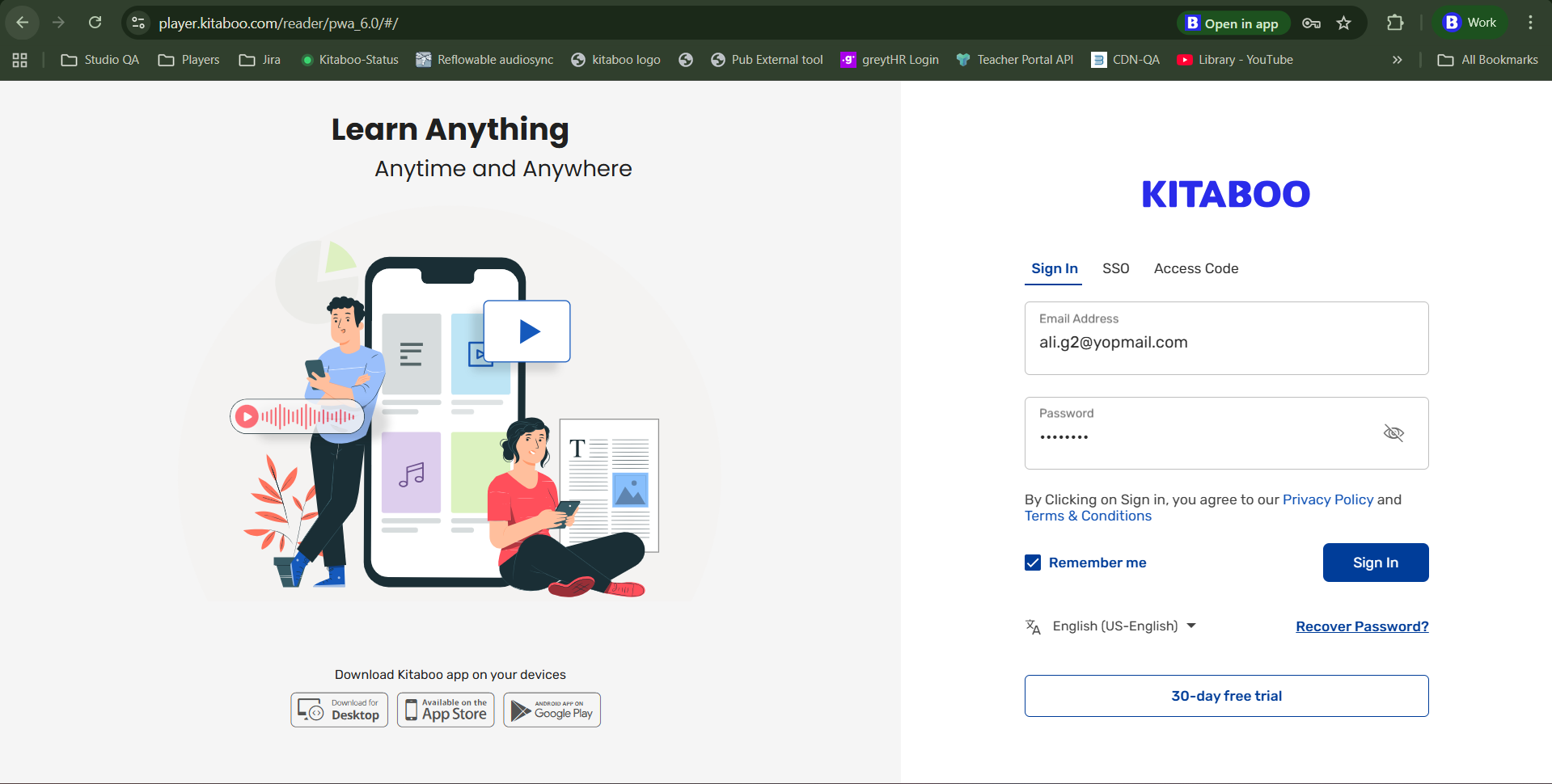
Tab Order:
| Tab Order | Feature |
| 1 | Enter email address |
| 2 | Password |
| 3 | Show Password |
| 4 | Privacy Policy |
| 5 | Terms & Conditions |
| 6 | Remember Me |
| 7 | Sign In Button |
| 8 | Language Change |
| 9 | Forgot Password |
| 10 | 30 Days Free Trial |
Keyboard Shortcuts:
| Sr. Number | Feature | Shortcut |
| 1 | Sign In | Ctrl+Shift+L |
| 2 | Access Code | Ctrl+Shift+A |
| 3 | Forgot Password | Ctrl+Shift+F |
Notes:
- Users will be able to select from sign in & Access code options using arrow buttons from the keyboard.
- Username and password will be already selected in case if typed in already.
- In case the username and password do not match, it should show the cursor in the username box.
- In order to select a checkbox for remembering username, Enter key will be used to select/deselect.
- The Forgotten password screen will open up as we press Enter once selected using Tab.
Bookshelf:
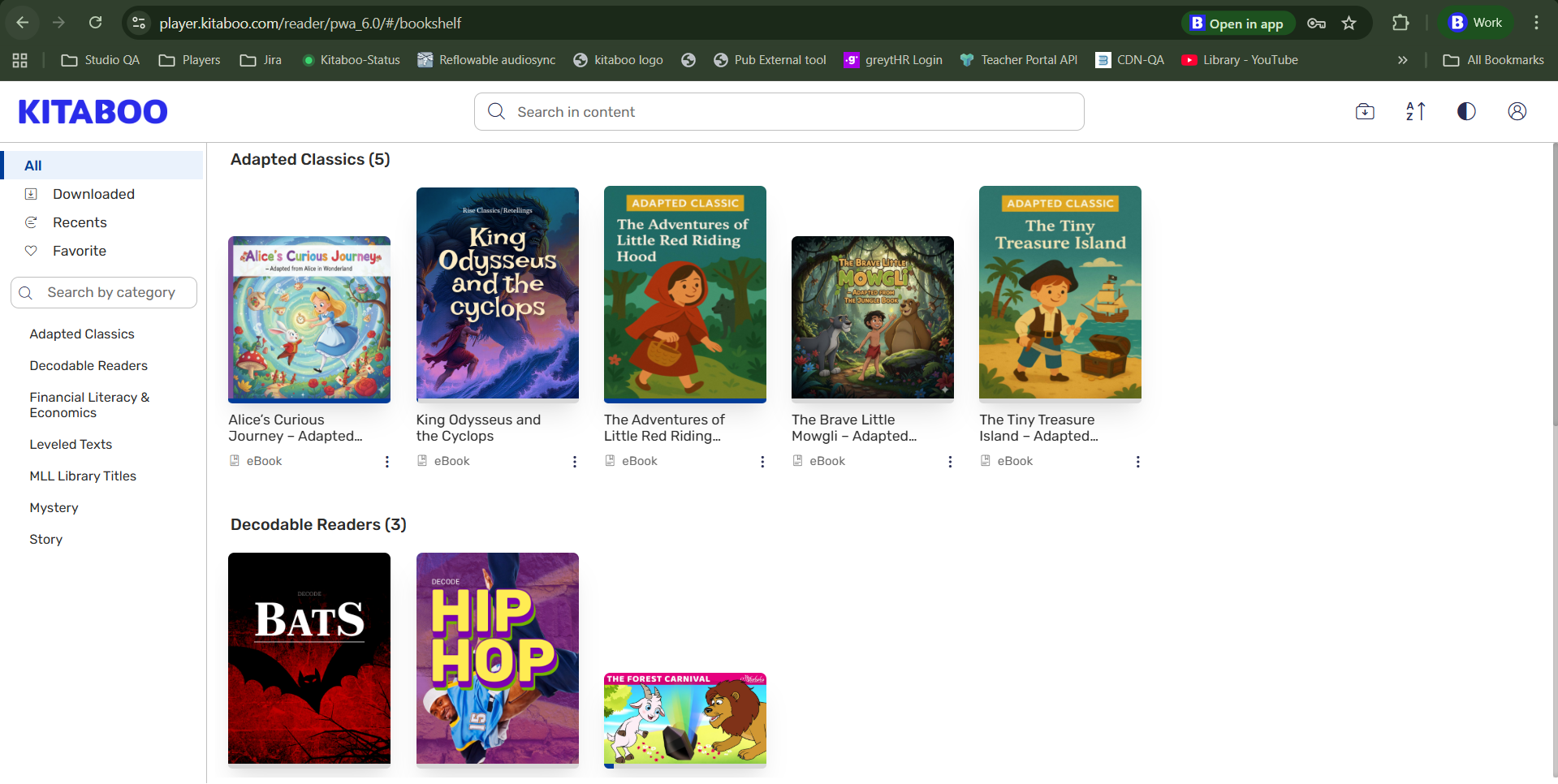
Tab Order:
| Tab Order | Feature |
| 1 | Kitaboo title |
| 2 | Bookshelf Search |
| 3 | Download Management |
| 4 | Sort by |
| 5 | Switch to Dark Mode |
| 6 | Profile Setting |
| 7 | All Category |
| 8 | Download category |
| 9 | Recently viewed category |
| 10 | Favorite |
| 11 | Search by category |
| 12 | List of Category-Category Selection (Note: after selecting category, next tab will display the related books) |
| 13 | Bookshelf selection |
| 14 | More info |
| 15 | Next set of content—>It will go next content |
Keyboard Shortcuts:
| Sr. Number | Feature | Shortcut |
|---|---|---|
| 1 | Search | Ctrl+Shift+S |
| 2 | Open Book | Alt+O |
| 3 | Open Statistics | Ctrl+Shift+X |
Notes:
- Standard shortcuts “Tab” and “Shift+Tab” will be used to move forward/backward with the book selection. “Enter” key can be used to launch the book.
- Book cover images will be highlighted and book title and description will be exposed to screen readers upon selection.
- For Navigation, users can also use the arrow keys in the bookshelf.
- “Ctrl+Shift+S” will shift focus to the search box.
- In the bookshelf, when focus is on a book thumbnail and we press enter then focus will shift to book opened, then on heading, book description, open and statistics button.
- When pressing on the tab key, the pointer will move to the category selection. To select the category, navigate using the arrow keys and press enter to select the category.
- When on 7th tab order, Press the tab key to go to navigate through books in the same line item. Once the pointer is in the last book, it will move down to the next line items.
Fixed Books:
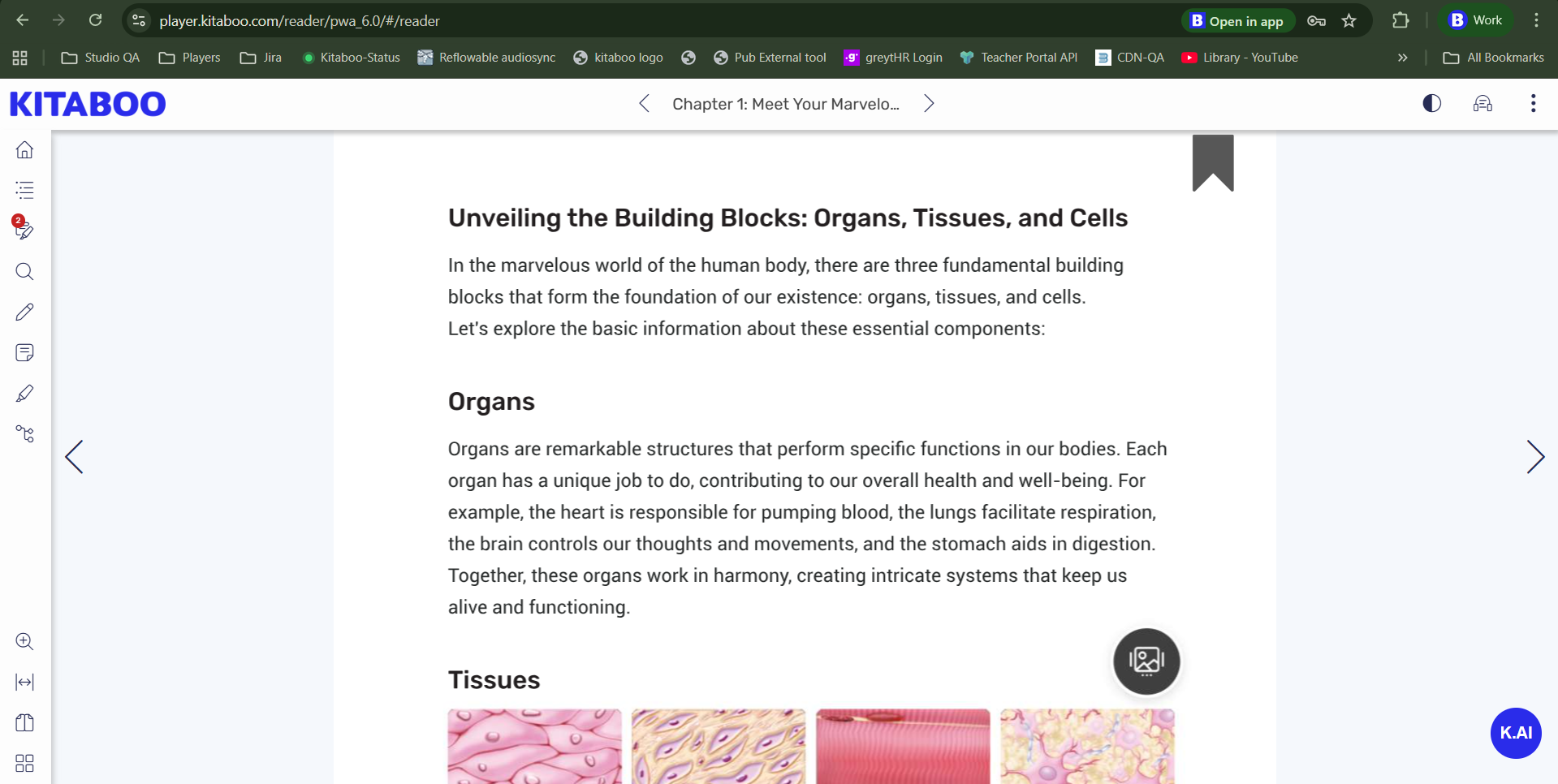
Tab Order:
| Tab Order | Feature |
| 1 | Logo |
| 2 | Previous Chapter |
| 3 | Book Name/Chapter Name |
| 4 | Next Chapter |
| 5 | Switch to Dark Mode |
| 6 | Text to Speech |
| 7 | Submit Data |
| 8 | Reset All Data |
| 9 | Download Management |
| 10 | Download Book |
| 11 | Print Pages |
| 12 | Profile |
| 13 | Back to Bookshelf |
| 14 | Skip to Content |
| 15 | TOC |
| 16 | My Data |
| 17 | Search |
| 18 | Pen Tool |
| 19 | Sticky Notes |
| 20 | Highlights |
| 21 | Zoom |
| 22 | Fit to Width/Height |
| 23 | Single/Double Page View |
| 24 | Thumbnails |
| 25 | Previous Page |
| 26 | Focus on Left Page |
| 27 | Bookmark of Left Page content |
| 28 | Print Left Page |
| 29 | Focus on Right Page |
| 30 | Bookmark of Right Page content |
| 31 | Print Right Page |
| 32 | Next Page |
| 33 | Previous Chapter |
| 34 | Next Chapter |
| 35 | K.AI |
Notes:
- Standard shortcuts “Tab” and “Shift+Tab” will be used to go further and backward.
- “>” and “<” keys can be used to navigate between different paragraphs, images, videos available on the current page. Functionality to define content order needs to be designed, if not available.
- Images, Videos and other media elements must hold Alt text specifying information about media elements.
- For the first time in the reader, press tab to reach bookmark, then tab to move focus to left page and again to move to the right page bookmark and then to its content.
- After the focus leaves the right page and navigates to the previous page button then moves to the next page button and then press enter to move to the next page. Then the second time, it will move to bookmark and then page content.
Keyboard Shortcuts:
| Sr. Number | Feature | Shortcut |
| 1 | Go To Bookshelf | Alt+B |
| 2 | TOC | Alt+C |
| 3 | Notebook | Alt+D |
| 4 | Pen Submit | Alt+S |
| 5 | Fit to width | Ctrl+Shift+E |
| 6 | Search | Ctrl+Shift+S |
| 7 | Page Bookmark | Ctrl+Shift+F |
| 8 | Single/Two Page View | Ctrl+Shift+V |
| 9 | Chapter Navigation (Next) | Alt+N |
| 10 | Chapter Navigation (Previous) | Alt+P |
| 11 | Thumbnail | Alt+O |
| 12 | Full Screen/ Read Mode | F11 |
| 13 | Left page reading | Alt+L |
| 14 | Right page reading | Alt+R |
| 15 | Zoom page | Alt+Z |
| 16 | Pen Tool | Ctrl+Shift+P |
| 17 | Highlights | Alt+H |
| 18 | Profile | Ctrl+Shift+M |
| 19 | Text to Speech | Ctrl+Shift+T |
| 20 | Print Page | Alt+P |
| 21 | Download Management | Ctrl+Shift+D |
| 22 | Download Book | Alt+K |
| 23 | Submit Data | Alt+Y |
Keyboard Accessibility:
- Standard keyboard arrow keys will be used to navigate between different pages of a book(As is doing currently). These keys will also be used to navigate between content available under TOC, Notebook and Search menu.
- Enter key can be used to select and navigate to selected pages from TOC, Notebook and Search menu.
- Esc Key will be used to move out of any sub-tab or pop ups.
Reflow ePub:
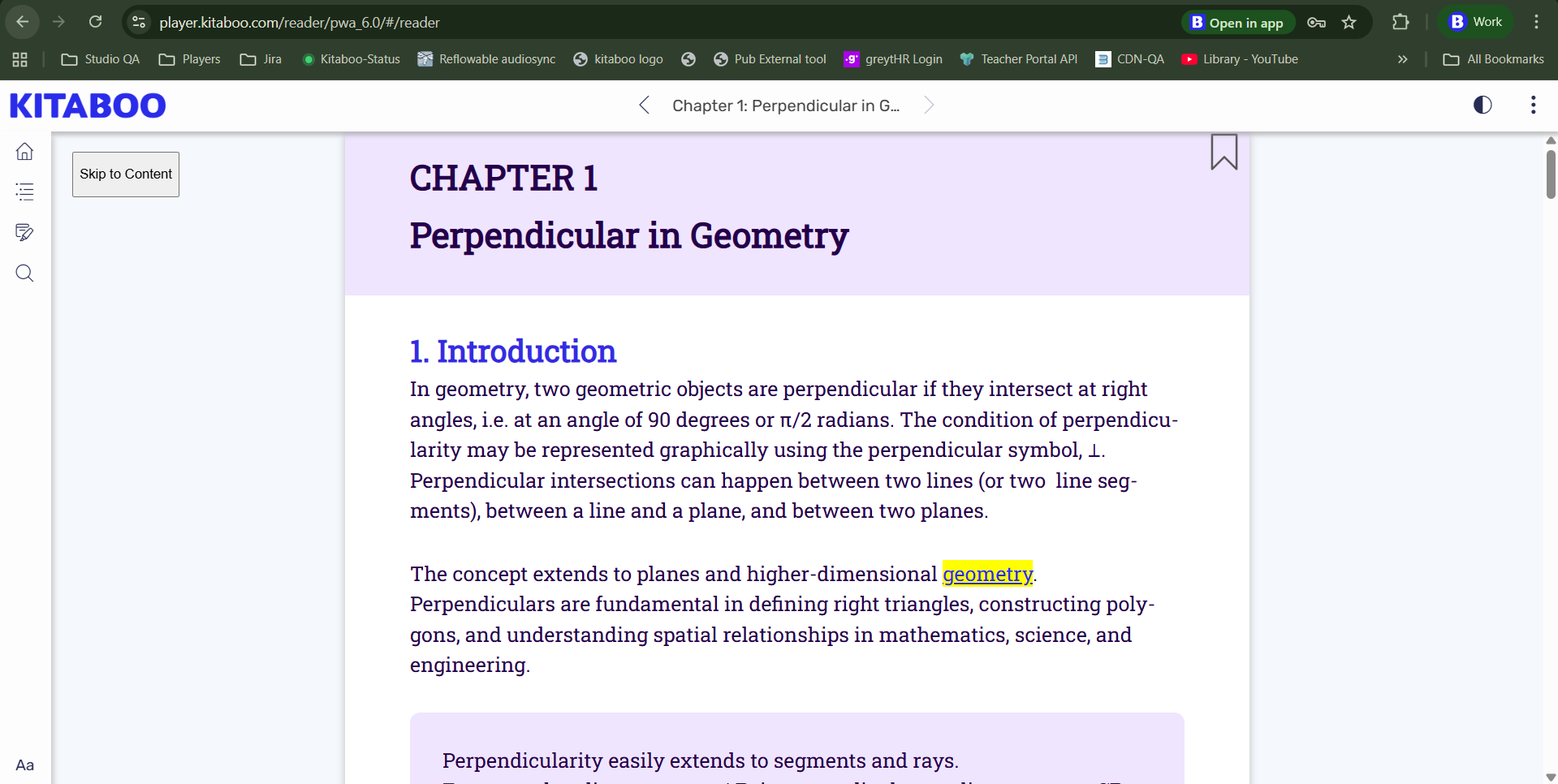
Tab Order (Scroll Mode On):
| Tab Order | Feature |
| 1 | Logo |
| 2 | Previous Chapter |
| 3 | Book Name/Chapter Name |
| 4 | Next Chapter |
| 5 | Switch to Dark Mode |
| 6 | Text to Speech |
| 9 | Download Management |
| 10 | Download Book |
| 12 | Profile |
| 13 | Back to Bookshelf |
| 14 | Skip to Content |
| 15 | TOC |
| 16 | My Data |
| 17 | Search |
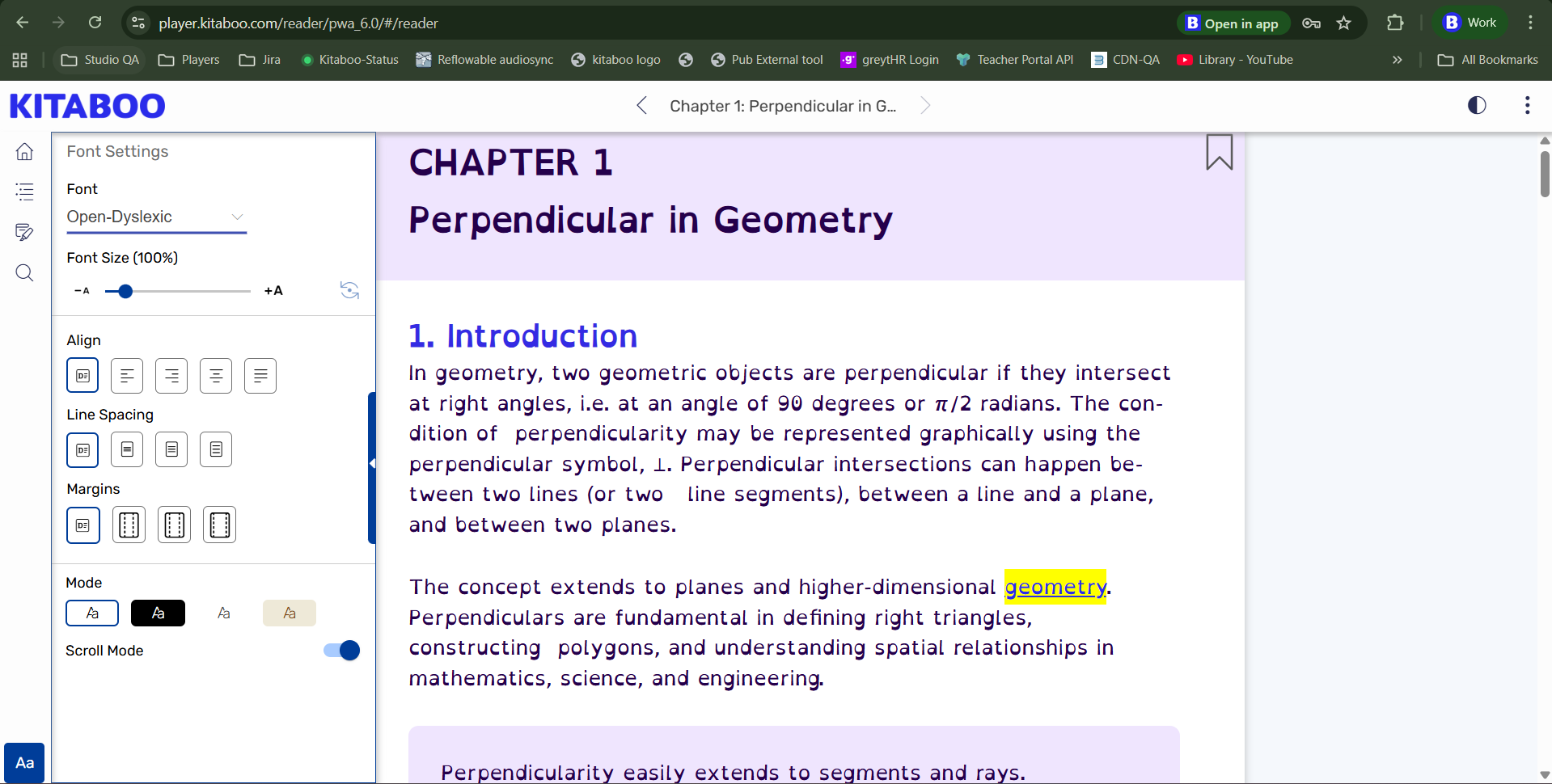
| 18 | Font Settings (Scroll Mode Off) |
| 19 | Thumbnails |
| 20 | Focus on Page |
| 21 | Bookmark |
Tab Order (Scroll Mode Off):
| Tab Order | Feature |
| 1 | Back To Library |
| 2 | Book Name/Chapter Name |
| 3 | Skip to Content |
| 4 | Bookmark |
| 5 | Sticky Notes |
| 6 | Highlights |
| 7 | Overflow Menu |
| 8 | Profile Settings |
| 9 | Reset All |
| 10 | Submit |
| 11 | Text to Speech |
| 12 | Print Pages |
| 13 | Download Management |
| 14 | Download Book |
| 15 | TOC |
| 16 | Notebook |
| 17 | Search |
| 18 | Font Settings (Scroll Mode On) |
| 21 | Text Settings |
| 22 | Thumbnails |
| 23 | Focus on Page |
| 24 | Bookmark |
Notes:
- Standard shortcuts “Tab” and “Shift+Tab” will be used to go further and backward.
- “>” and “<” keys can be used to navigate between different paragraphs, images, videos available on the current page. Functionality to define content order needs to be designed, if not available.
- Images, Videos and other media elements must hold Alt text specifying information about media elements.
- For the first time in the reader, press tab to reach bookmark, then tab to move focus to left page and again to move to the right page bookmark and then to its content.
- After the focus leaves the right page and navigates to the previous page button then moves to the next page button and then press enter to move to the next page. Then the second time, it will move to bookmark and then page content.
Keyboard Shortcuts:
| Sr. Number | Feature | Shortcut |
| 1 | Go To Bookshelf | Alt+B |
| 2 | TOC | Alt+C |
| 3 | Notebook | Alt+D |
| 4 | Search | Ctrl+Shift+S |
| 5 | Page Bookmark | Ctrl+Shift+F |
| 6 | Single/Two Page View | Ctrl+Shift+V |
| 7 | Chapter Navigation (Next) | Alt+N |
| 8 | Chapter Navigation (Previous) | Alt+P |
| 9 | Font Setting | Alt+S |
| 10 | Full Screen / Read Mode | F11 |
| 11 | Left page reading * | Alt+L |
| 12 | Right page reading * | Alt+R |
* In scroll mode both shortcuts will work to focus on page
Keyboard Accessibility:
- Standard keyboard arrow keys will be used to navigate between different pages of a book(As is doing currently). These keys will also be used to navigate between content available under TOC, My Data and Search menu.
- Enter key can be used to select and navigate to selected pages from TOC, My Data and Search menu.
- Esc Key will be used to move out of any sub-tab or pop ups.