Popular
- Manage License (Add on)
- Bulk Revoke
- Generating Access Code
- Direct Distribution (Add On)
- Creating Single User or Multiple Users (Bulk Upload)
- Admin Center and Profile and Settings
- Revoking Content
- Distributing Content
- Signing in to Kitaboo
- Promote User/Transfer
- Create Class/Update Class
- Selective Oneroster Sync with API/ZIP/SFTP
- Analytics Dashboard and Reports Overview
- How Kitaboo Reader – Text-to-Speech (TTS) Works
- Activated User – Definition & Billing Policy
- What is Sequential Learning and How to Enable It? (Add On)
- Understanding User Roles: Producer vs. Admin
- How to Add External LTI Link (Add-On)
- Auto Book Deletion Process
- Adding group with SAML
- Syncing Data with Clever
- Selective Oneroster Sync with API/ZIP/SFTP
- Syncing Data with PowerSchool
- Syncing Data with OneRoster
- Adding a Group
- Searching a Customer
- Issuing Licenses
- Editing a Customer
- Deactivating a Customer
- Adding a Google Classroom Customer
- Adding a OneRoster Customer
- Adding One roster 1.2
- Adding a LTI 1.3 Customer with OneRoster
- Adding a LTI 1.3 Customer
- Adding an LTI 1.1 Customer with OneRoster
- Adding LTI 1.1 Customers
- Sorting Customer and Group
- Creating a Collection
- Enable K-AI at the content level
- Content Lifecycle Stages in Kitaboo for eBooks
- Creating a Fixed-layout Kitaboo eBooks
- Creating Fixed-layout ePub 3.0
- Upload 3rd Party ePub 2.0/3.0
- Creating a Course or Uploading Scorm
- Activity or Gradable Activity Creation
- Authoring an ePub
- Creating a Video Book
- Creating an Audio Book
- Updating the Cover Image
- Editing a Fixed eBook
- Deleting and Deactivating Content
- Users Tab
- How to Edit and Delete a Category
- Clever Integration
- Classlink Integration
- Canvas LTI Integration
- Admin Center
- Analytics Tab
- Adding a Customer
- Creating Admin Accounts
- Q1. How can I get help with a specific service?
- Q2. How do I report bugs or request service enhancements?
- Q3. As the main institute admin, if I revoke or delete a user created using an access code, can the same access code be reused? What will be the expiry period for that access code’s content?
- Q4. As a main institute admin, can I change the password(s) of institute(s) associated with my account?
- Q5. Why is my Customer ID and Password not working?
- Q6. As a main group admin, can I change the password(s) of groups (sub-admin) associated with my account?
- Q7. How can I redeem an access code?
- Q8. What is a common access code?
- Q9. While distributing content to all classes in one go, how does a user know if he/she has been assigned content?
- Q10. While distributing content, can I restrict access to it to teachers only?
- Q11. What are the prerequisites for adding a user to an existing class?
- Q12. Can I create a class with students only?
- Q13. How can I create multiple users on the Kitaboo system?
- Q14. Why is my Group ID and Password not working?
- Q15. I forgot my password. How do I reset it?
- Q16. How do I log in to the Kitaboo portal/Reader?
- Q17. How can I search for a Custom Order ID while assigning content or a collection in the Institute/Customer login?
- Q18. How to add a custom order ID to a new order or an Existing order?
- Q19. What is the API update process, how are changes communicated, and what is the support period for deprecated features?
- Q20. What is the notification process for product release notifications, product issues (discovered by Kitaboo), and product outage/downtime notifications?
- Q21. Why are some symbols not displaying correctly in my eBook or why is the file failing during the conversion process?
- Q22. Does Kitaboo support the Chinese language?
- Q23. What types of quiz activities does Kitaboo support?
- Q24. What is the file size limit supported in Kitaboo?
- Q25. What happens if I do not provide a Table of Contents (TOC) sheet during the bulk upload process in Kitaboo?
- Q26.How does the Multiple Admin Edit feature work, and what are its limitations?
- Q27.How to Update Widgets/Activities in Kitaboo After New Fixes or Enhancements Are Deployed ?
- Q28. Print Configuration in Kitaboo Reader.
- Q29. Glossary Instructions Guide (Kitaboo Fluid 360)
- Q30. WCAG 2.2 Compliance – Reader and Content Responsibilities
- Q31. Keyboard Shortcuts for Table and TOC Management in Author (Kitaboo Fluid 360)
- Help Screen: Your Personal Guide
- Easy Steps to Create or Upload a Cover Page
- Creating a structured Table of Contents (TOC)
- Choosing the Perfect Layout
- #1. Add content using the Authoring
- 1.1. Title: A Simple Way to Add Clear, Catchy Headings!
- 1.2. Explore the smart “Header” Element!
- 1.3. Discover the Power of Text in Authoring!
- 1.4. Make Your Pages Come to Life with Images!
- 1.5. Add Engaging Videos to Your Pages!
- 1.6. Add Engaging Sounds to Your Pages
- 1.7. Explore HTML Interactivity!
- 1.8. Organize your data with the Table element!
- 1.9. Callout Box: A Handy Way to Highlight Important Information!
- #2. Explore Fun and Interactive Widgets with the Authoring Platform
- 2.1. Multiple Choice activity
- 2.2. Create Engaging Presentations with the Slideshow Component!
- 2.3. Image Labelling: Make Your Pictures Interactive!
- 2.4. Fill in the Blanks: Fun and Interactive Learning!
- 2.5. Highlighter: Your Handy Tool for Highlighting Important Text!
- 2.6. Correction Element: Make Learning Fun and Interactive!
- 2.7. Sorting Component – Organize with Ease!
- 2.8. Match the Pairs: An Interactive Learning Tool!
- 2.9. Easy-to-Use Sidebar for Your Content
- 2.10. Click to Reveal activity – Making Learning Fun!
- 2.11. Explore the Fun World of Wordsearch
- 2.12. Discover the Flashcard Element for Your Learning Journey!
- 2.13. Explore the “Group Activity” Element
- 2.14. Discover the Fun of Categorizing with the “Categorize” widget
- 2.15. Explore the Question and Answer Activity
- #3. Unlock the Power of Gradable Activities in Kitaboo’s Authoring Platform
- 3.1. Creating a Gradable Activity
- 3.2. Adding a Gradable Activity in an eBook
- 3.3. Students Accessing the Activities
- 3.4. Standalone Gradable Activity
- 3.5. Grade Assessment: Activity Management for Admins and Teachers
- 3.6. Customizable Certificates for Course Completion
- #4. K.AI: Transforming Content Creation with AI-Driven Interactivity
- 4.1. K.AI Automatic Quiz Generation from PDF
- 4.2. Automatic Generation of Quiz from PDF Using K.AI Markup
- Kitaboo 6.0 Reader Accessibility Help Manual
- Login to Kitaboo Reader
- How to use Access Code
- Bookshelf Overview
- Bookshelf Search in Kitaboo Reader
- Guide to view Fixed Layout Ebooks
- Guide to view Reflowable ePUBs
- Guide to view VideoBooks
- Guide to view AudioBooks
- Changing Profile Settings in Reader
- Collections in Kitaboo Reader
- Viewing More Info in Kitaboo Reader
- How to add Bookmarks
- How to add Sticky Notes
- How to add Highlights
- How to use Pen Tool
- How to Access Resources
Overview of LTI Tool Consumer & LTI Tool Provider
🔹 What is LTI?
LTI (Learning Tools Interoperability) is a standard that allows two different platforms (for example, two different eReaders or LMS systems) to communicate with each other securely.
- One platform provides the content/tool (Provider).
- The other platform consumes or launches that content/tool (Consumer).
🔹 LTI Tool Provider
- The Provider is the platform that hosts and serves the content.
- When your reader/content is being launched on another platform, your system acts as the Tool Provider.
- Example:
- Kitaboo has an eBook.
- A university uses Moodle LMS.
- Students log into Moodle and click on the book.
- Moodle (Consumer) requests the book from Kitaboo.
- Kitaboo (Provider) delivers the book seamlessly inside Moodle without students logging in again.
👉 In short: Provider = we are sharing our content to be launched from someone else’s system.
🔹 LTI Tool Consumer
- The Consumer is the platform that requests and displays the content from another provider.
- When you launch another platform’s content on your reader platform, your system acts as the Tool Consumer.
- Example:
- Another publisher (say, Pearson) has content hosted on their system.
- You integrate their content into the Kitaboo Reader.
- When a student opens Pearson’s course from Kitaboo, Kitaboo (Consumer) requests and launches it from Pearson’s system (Provider).
👉 In short: Consumer = we are embedding other platforms’ content into our system.🔹 Simple Analogy (Restaurant Example 🍽️)
- Provider = Restaurant kitchen (they cook and serve the food/content).
- Consumer = Customer’s table (they receive and enjoy the food/content).
- If Kitaboo serves its content inside another LMS → Kitaboo is the kitchen (Provider).
- If Kitaboo displays another publisher’s content → Kitaboo is the table (Consumer).
👉 So depending on the scenario, Kitaboo can be both:
- Provider when giving access to our content on other platforms.
Consumer when embedding other platforms’ content into our reader.
Sample External Tool Creation Process
The sample external tool creation process is outlined below, including the required data and the steps to add and verify it after creation in both the Content tab and the Admin Center.
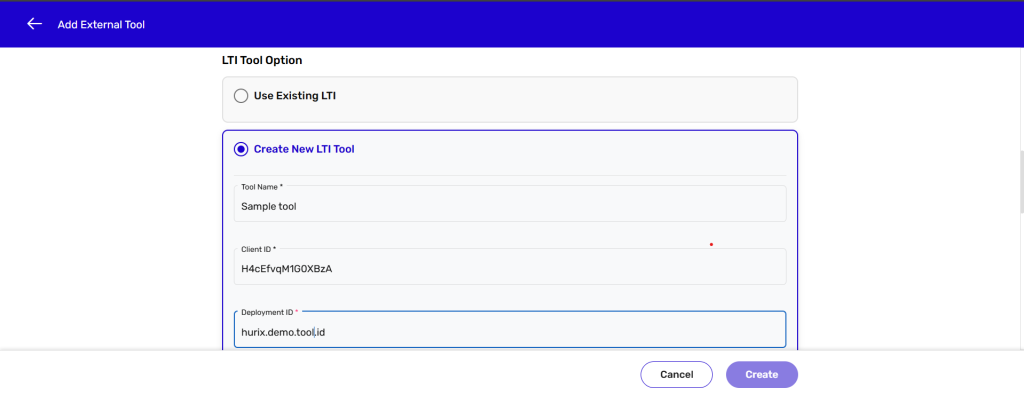
In the UI, mandatory parameters are marked with an asterisk (*). The following details outline the mandatory and non-mandatory fields for configuring an external tool:
Mandatory Fields
External Tool Content Metadata
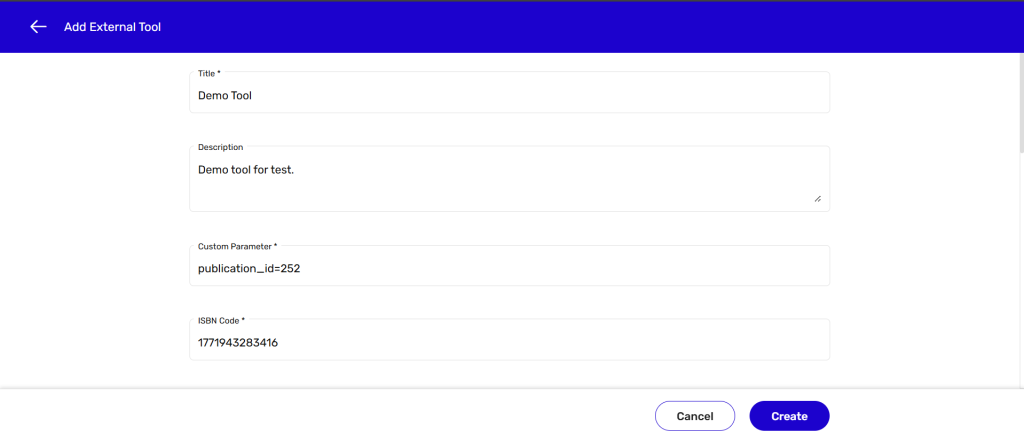
- Title* – Name of the external tool.
- Custom Parameter* – Custom parameter to be passed while launching the tool.
- Category* – Tool category selection.
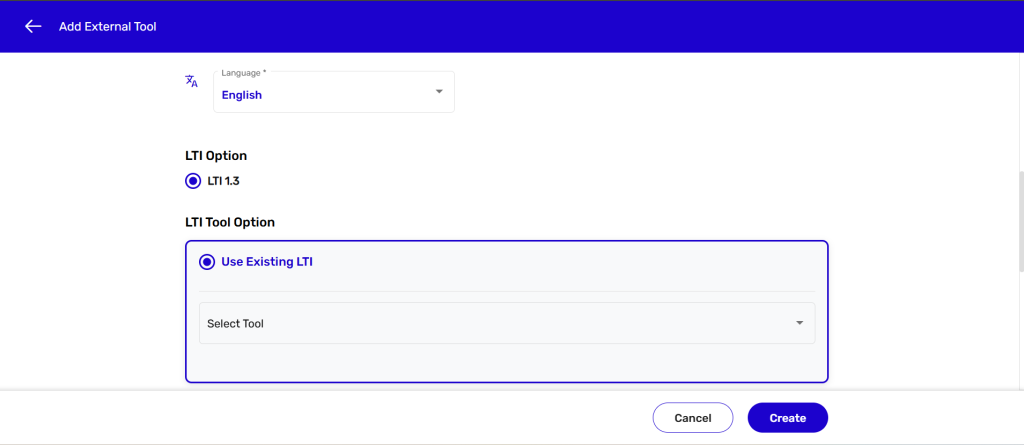
- Language* – Default language for the tool.
Create LTI Tool
- Tool Name* – Unique name of the LTI tool.
- Client ID* – Client identifier provided for the LTI tool.
- Deployment ID* – Deployment identifier for the LTI integration.
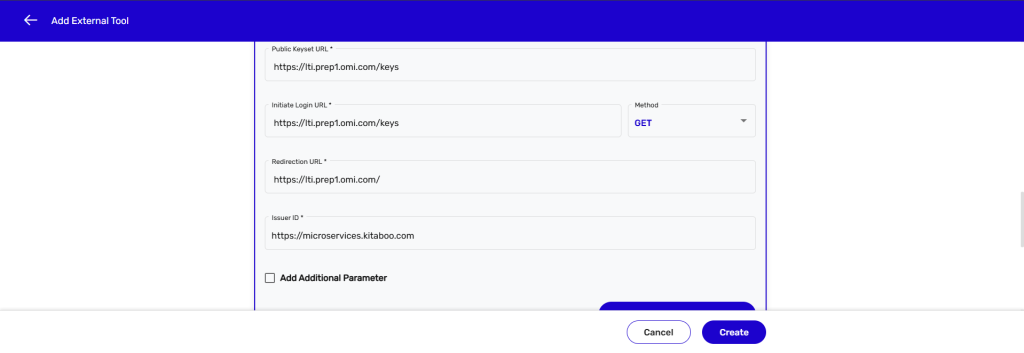
- Public Keyset URL* – URL for fetching the public keyset.
- Initiate Login URL* – URL used to initiate the LTI login.
- Redirection URL – Redirection URL.
- Method* – Select method for login initiation.
- Issuer ID* – https://microservices.kitaboo.com (The Issuer ID field is https://microservices.kitaboo.com, and this will remain the same for all external tools on Production)
Non-Mandatory Fields
- Description (Content Metadata) – Optional description of the tool.
- Add Additional Parameter (LTI Tool creation) – Allows adding extra key-value parameters.
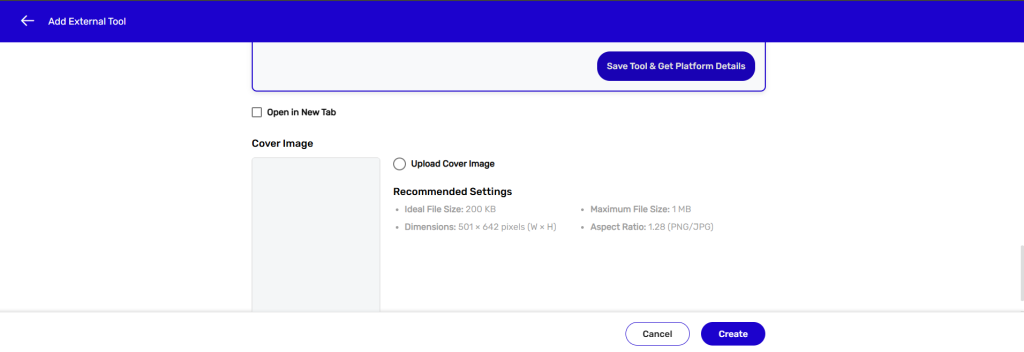
- Cover Image (Content Metadata) – Optional cover image for the external tool.
- Open in New Tab (checkbox) – Option to open the tool in a new tab. If not selected, the content will open inside an iFrame.
Sign in with your Enterprise Admin credentials.
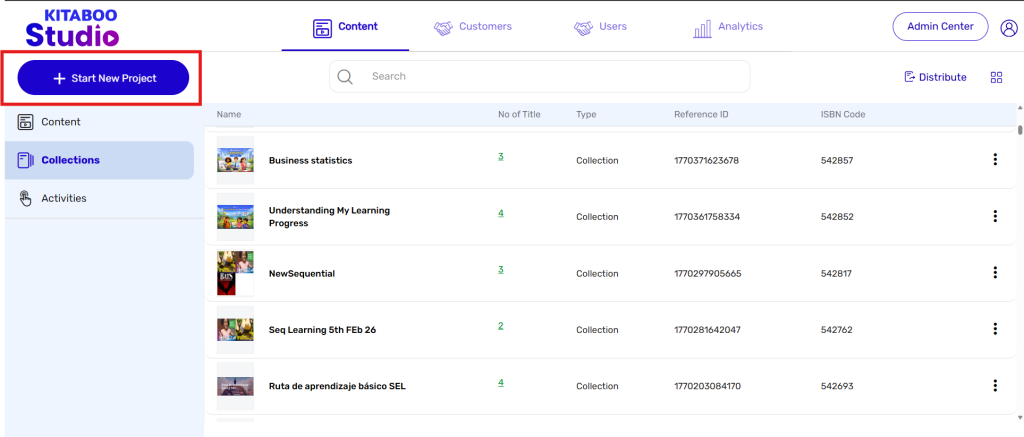
- Switch to the Content tab. > Click on the Start New Project button.
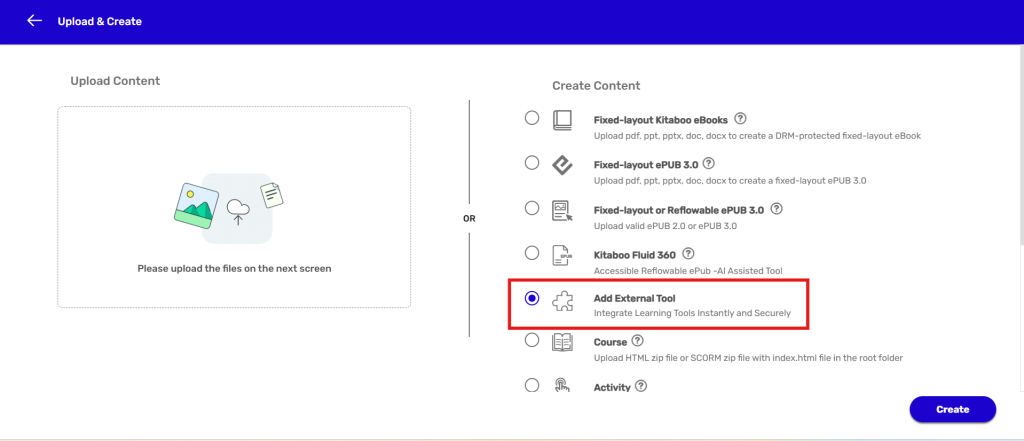
On the Upload & Create page, select the Add External Tool option from the Create Content list. > Click on the Create button
On clicking the Add External Tool option, the tool details screen will be displayed where you need to enter the required information (as explained previously).
After entering all the required details, click on the Create button.
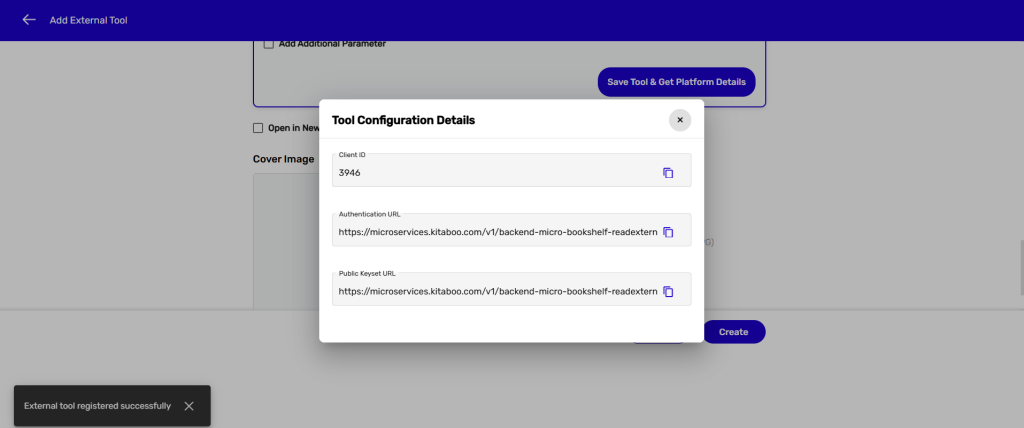
A success message will be displayed:
“External Tool registered successfully” along with the Tool Configuration details such as:
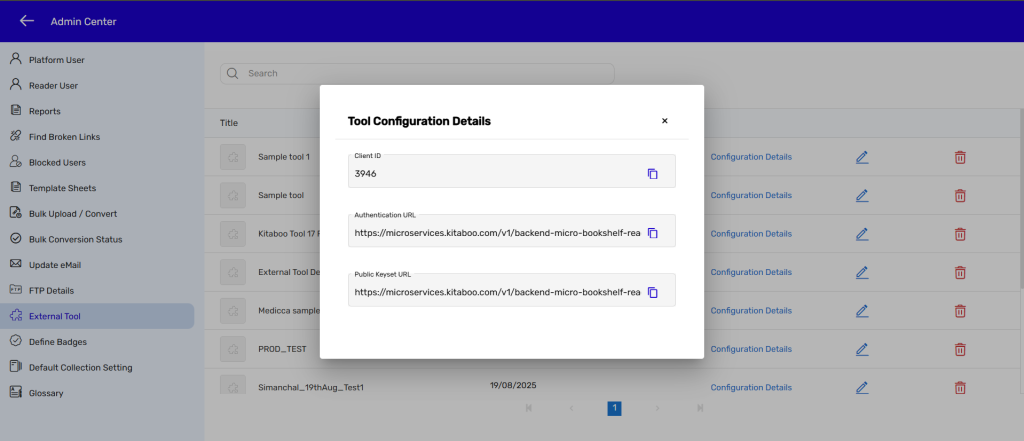
Client ID
Authentication URL
Public Keyset URL
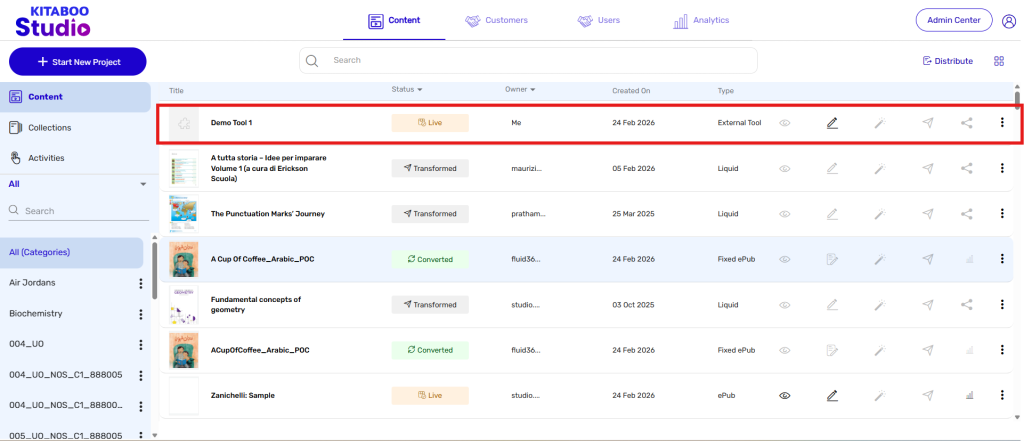
Once created, the external tool will be visible under the Content tab.
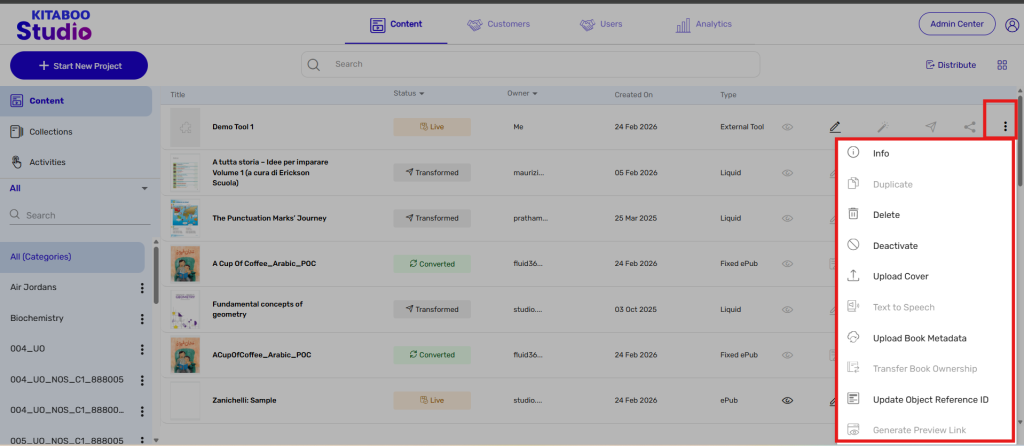
Click on the three dots (More Options) against the tool name to access the following options:
View Info
Delete Tool
Deactivate Tool
Upload Cover Image
Upload Book Metadata
Update Object Reference ID
External Tool in Admin Center
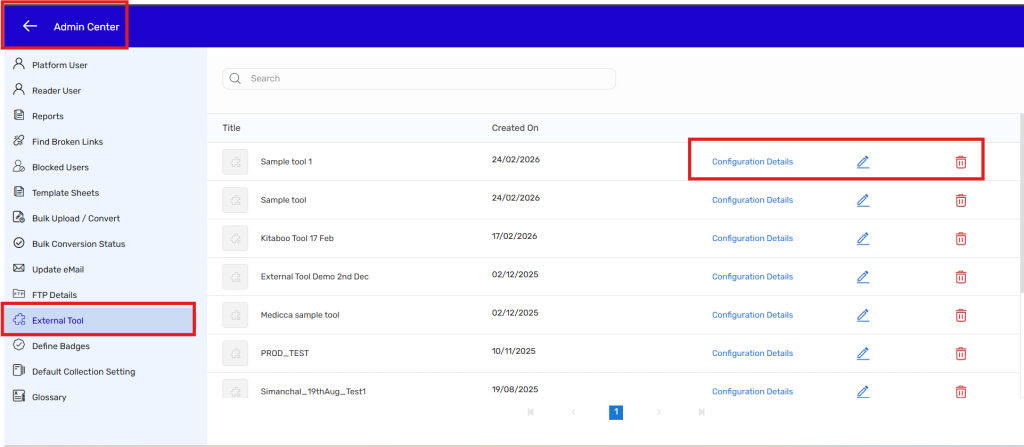
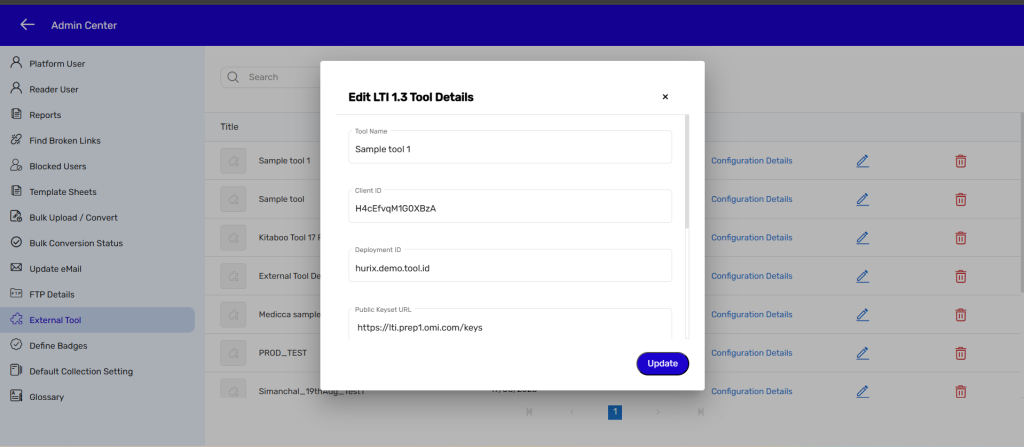
The created external tools can also be viewed in the Admin Center under the External Tool section.
Here, you can:
View configuration details
Edit the tool
Delete the tool
On clicking Configuration Details, the complete tool configuration information will be displayed.
On clicking Edit Tool, the tool details screen will open where the available fields can be updated as required.