

Popular

- Manage License (Add on)
- Bulk Revoke
- Generating Access Code
- Direct Distribution (Add On)
- Creating Single User or Multiple Users (Bulk Upload)
- Admin Center and Profile and Settings
- Revoking Content
- Distributing Content
- Signing in to Kitaboo
- Promote User/Transfer
- Create Class/Update Class
- Selective Oneroster Sync with API/ZIP/SFTP

- Customer Order Details -View Order
- License Management
- Analytics Dashboard and Reports Overview
- How Kitaboo Reader – Text-to-Speech (TTS) Works
- Activated User – Definition & Billing Policy
- What is Sequential Learning and How to Enable It? (Add On)
- Understanding User Roles: Producer vs. Admin
- How to Add External LTI Link (Add-On)
- Auto Book Deletion Process
- Adding group with SAML
- Syncing Data with Clever
- Selective Oneroster Sync with API/ZIP/SFTP
- Syncing Data with PowerSchool
- Syncing Data with OneRoster
- Adding a Group
- Searching a Customer
- Issuing Licenses
- Editing a Customer
- Deactivating a Customer
- Adding a Google Classroom Customer
- Adding a OneRoster Customer
- Adding One roster 1.2
- Adding a LTI 1.3 Customer with OneRoster
- Adding a LTI 1.3 Customer
- Adding an LTI 1.1 Customer with OneRoster
- Adding LTI 1.1 Customers
- Sorting Customer and Group
- Creating a Collection
- Enable K-AI at the content level
- Content Lifecycle Stages in Kitaboo for eBooks
- Creating a Fixed-layout Kitaboo eBooks
- Creating Fixed-layout ePub 3.0
- Upload 3rd Party ePub 2.0/3.0
- Creating a Course or Uploading Scorm
- Activity or Gradable Activity Creation
- Authoring an ePub
- Creating a Video Book
- Creating an Audio Book
- Updating the Cover Image
- Editing a Fixed eBook
- Deleting and Deactivating Content
- Users Tab
- How to Edit and Delete a Category
- Clever Integration
- Classlink Integration
- Canvas LTI Integration
- Admin Center
- Analytics Tab
- Adding a Customer
- Creating Admin Accounts
How Kitaboo Reader – Text-to-Speech (TTS) Works
Kitaboo Reader includes a Text-to-Speech (TTS) feature that allows users to listen to their digital books. Below is a guide to help you understand how the feature works and how to get the best reading experience.
1. Uses Your Device’s System Voices
Kitaboo’s TTS does not use its own voice engine.
Instead, it uses the default system voices (audio actors) available on your Windows or Mac device.
- The available voice names in Kitaboo will vary based on the voices installed on your system.
- Additional voices can be added through your OS settings (details below).
2. Language Depends on Your PDF Input
TTS reads the content based on the language assigned during the content conversion process.
When converting your PDF in Kitaboo Studio:
- Go to Advanced Settings
- Select the correct language for your PDF
- This ensures the TTS engine chooses the right pronunciation and voice accents.

3. Follows the PDF’s Reading Order
Kitaboo reads text in the same logical order defined inside your PDF.
You can verify this order using:
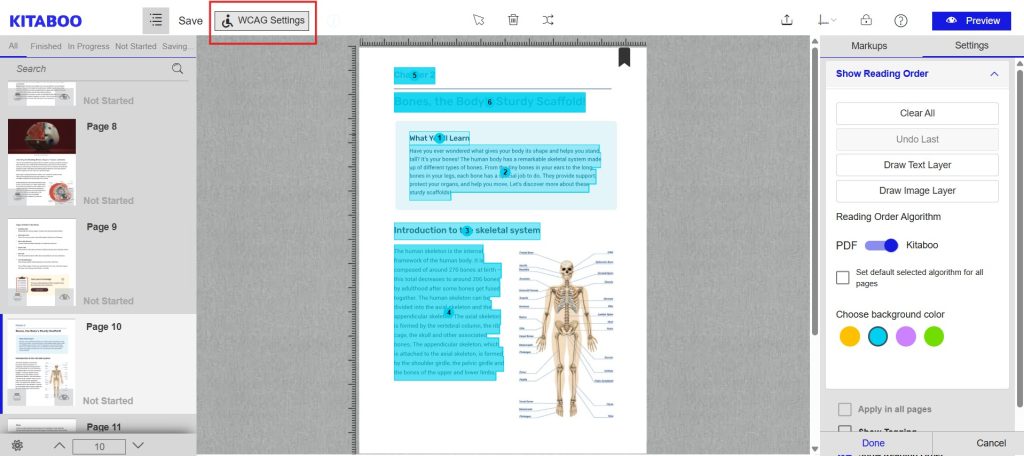
Adobe Acrobat → View → Reading Order
If the reading order inside the PDF is incorrect, TTS will also read the content in the wrong sequence.

4. Fixing Incorrect Reading Order
If your PDF does not have a proper reading order, you have two options:
Option 1 (Recommended): Fix in Adobe Acrobat
- Use “Reading Order” or “Tags” panel
- Correct the tagging and text flow
- This ensures reliable TTS performance
Option 2: Fix Inside Kitaboo (Page-Wise)
- Use Kitaboo Enrichment Module → Reading Order Tool
- Rearrange text blocks manually for each page
Note:
This may not work if your PDF tags are incorrectly grouped or merged. In such cases, Adobe Acrobat fixing is required.
5. Changing Narrator Voice in Kitaboo Reader
Inside Kitaboo Reader:
- Open Text-to-Speech
- Select a voice from the Actor / Voice dropdown
Because Kitaboo uses system voices, these options will differ from one device to another.

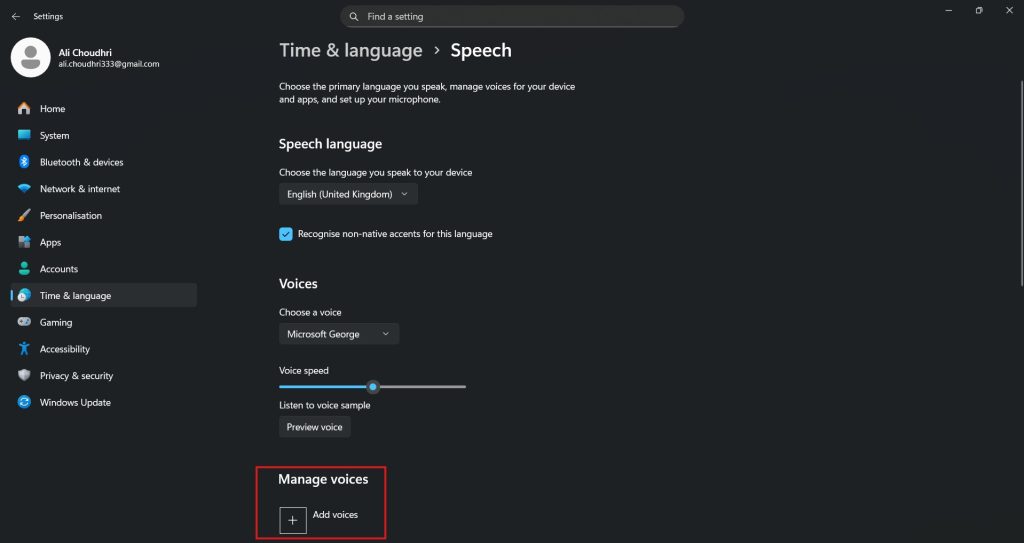
6. Adding More System Voices
If you want additional voices:
Windows
Go to:
Settings → Time & Language → Speech → Manage Voices
Mac
Go to:
System Settings → Accessibility → Spoken Content → Voices
7. Voice Quality and Future Improvements
Current system voices may sound robotic because they depend on your OS capabilities.
However:
- Windows, Mac, and mobile OS providers are rapidly improving TTS using AI-powered natural voices
- Future enhancements may allow more human-like voices with optional paid voice packs or third-party TTS providers
8. Math Equations
Math equation reading (MathML / math expressions) is not supported yet by Kitaboo TTS.